
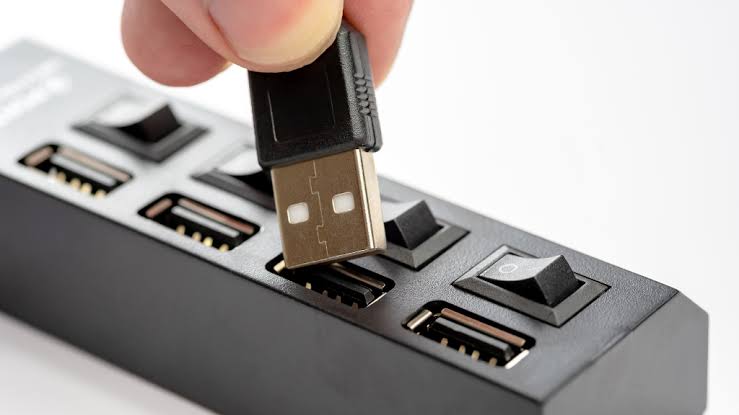
A laptop can be powerful enough for demanding work and still feel inconvenient to use. You might have only two available ports, yet need to connect a mouse, external storage, a keyboard, and a phone at the same time. Disconnecting one device to make room for another quickly becomes frustrating, especially when it interrupts a task or leaves you searching for a missing cable.
A usb hub offers a straightforward solution by expanding the number of connections available from a single port. However, not every hub provides the same capabilities. Some are designed for basic accessories, while others support faster data transfers, additional display connections, or power delivery. Understanding these differences can help you choose a model that fits your workspace without paying for features you do not need.
Begin With the Problem You Want to Solve
Before comparing specifications, look at the devices you regularly connect. Someone who mainly uses a wireless mouse, keyboard receiver, and flash drive may need only a small, inexpensive hub. A photographer transferring files from memory cards may need a card reader and faster data connections. A remote worker could prioritize Ethernet, external storage, and convenient access to several peripherals. Make a short list of the devices you use together rather than counting every accessory you own. This distinction matters because a hub is most useful when it accommodates your actual routine.
Next, check which ports those devices require. USB-A remains common on many accessories, while newer equipment often uses USB-C. Some peripherals also need HDMI, an SD card slot, or a network connection. Choosing the correct combination from the beginning can save you from relying on several separate adapters.
Port Count Does Not Tell the Whole Story
It is tempting to assume that a hub with eight ports is automatically better than one with four. In practice, the type and performance of those ports are often more important than the total number. A model with multiple USB-A connections may be ideal for a keyboard, mouse, and printer. Another with fewer ports might provide faster USB-C data transfer, making it more suitable for external solid-state drives. If you frequently move large files, the supported USB standard can make a noticeable difference in how long transfers take.
Remember that the connector shape does not guarantee a particular speed. Two USB-C ports can support different data rates, and a port designed for charging may not transfer files at all. Read the specifications for each connection rather than assuming that every port performs the same function.
Understand the Difference Between Data and Power
A hub connects several devices to a computer, but it also has to manage the power available to those devices. This becomes important when multiple accessories draw electricity from the same connection. A basic, bus-powered hub receives power directly from the laptop. It is often convenient for low-power peripherals, such as a mouse or keyboard, because it does not require an additional adapter. However, the available power is limited by the host connection and the hub’s design.
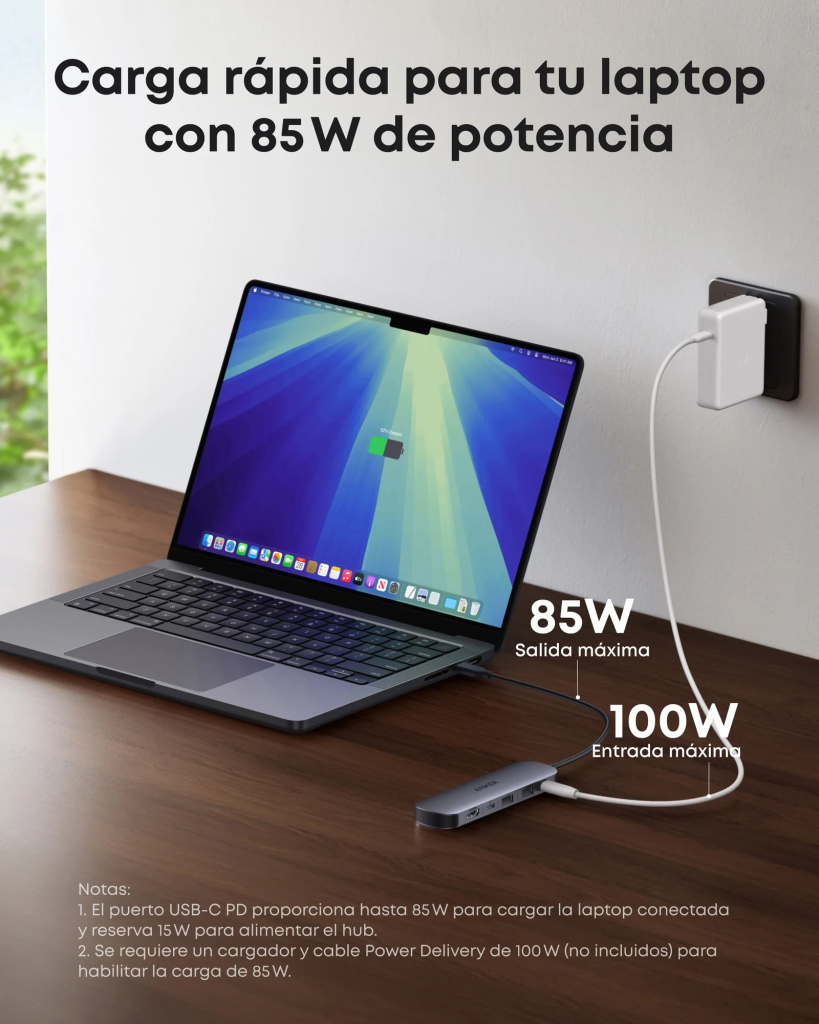
A powered hub uses an external power supply. This can be useful when connecting devices with greater power requirements or operating several peripherals simultaneously. It does not mean every connected device will receive unlimited power, so check the hub’s output ratings and the requirements of your equipment. Charging support deserves particular attention. Some hubs provide power delivery to a connected laptop, while others only supply power to smaller accessories. If you want to charge your computer through the hub, confirm that both the hub and laptop support the required charging arrangement and wattage.
Know When a Hub Is Not Enough
Although hubs can add useful connections, they do not automatically turn a laptop into a complete workstation. A standard model may not support external displays, wired networking, or laptop charging. If your setup depends on several monitors and a range of desk accessories, a docking station may be a more suitable choice. Display support is particularly easy to misunderstand. An HDMI port does not guarantee compatibility with every monitor resolution or refresh rate. The laptop’s USB-C capabilities, the hub’s specifications, and the operating system can all affect the result.
Similarly, connecting two monitors through a usb hub does not always mean you can extend your desktop across both. Some equipment supports only mirroring, while other configurations require specific hardware or software support. Confirm the supported display arrangement before buying an accessory for a multi-monitor setup. For a simple collection of peripherals, a hub remains a practical option. For a workstation that needs multiple displays, networking, and charging through one cable, compare docking stations as well.
Small Design Details Make Everyday Use Easier
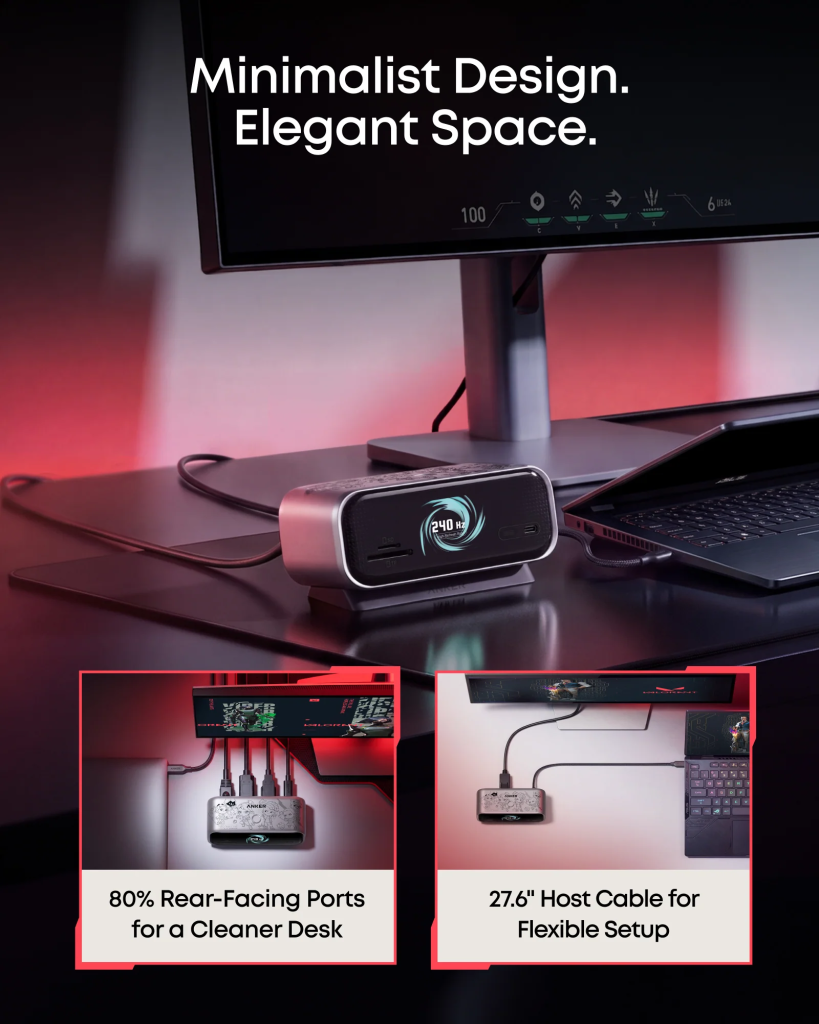
Specifications are important, but physical design can influence how useful a hub feels after several months of use. Consider where the computer’s ports are located and how much cable length you need. A short, built-in cable may be convenient for travel but awkward when a laptop sits on a stand. A longer cable can provide more flexibility on a desk, although excessive cable length may create clutter. The spacing between ports matters too. Oversized USB drives and unusually shaped connectors can block neighboring sockets when they sit too close together. If you plan to connect several devices permanently, look for a layout that allows comfortable access.
Heat is another practical consideration. A hub may become warm during heavy data transfers or when several devices are connected. Keep it on a stable, ventilated surface rather than covering it with papers or placing it in a cramped space. Choose equipment with clear specifications, appropriate safety information, and a reasonable warranty. Anker is one manufacturer you may encounter while comparing accessories, but evaluate the exact model against your needs instead of relying on brand recognition alone.
Keep Your Setup Reliable Over Time
A well-chosen hub should make your workspace easier to manage, not introduce new problems. Avoid exceeding the device’s power limits, disconnect external drives safely when required, and use cables suited to the connected equipment. If a device repeatedly disconnects, test it directly with the computer to help identify whether the problem comes from the hub, cable, or peripheral. Check the manufacturer’s guidance for firmware or driver requirements if applicable. These basic troubleshooting steps can save time before you decide that an accessory needs replacing.
As your equipment changes, review your connections occasionally. A hub that suited a simple laptop setup may no longer be sufficient after you add high-speed storage or a monitor. Choosing based on your current needs while allowing reasonable room for growth is usually the most practical approach.
Final Thoughts
The right USB hub is not necessarily the one with the most ports or the lowest price. It is the one that supports your devices, provides suitable data speeds, handles power requirements safely, and fits your workspace. Start by identifying the connections you use most often, then check each port’s actual capabilities. With a little preparation, you can reduce cable swapping, improve organization, and make your computer more convenient to use every day.
Frequently Asked Questions
Does a USB hub reduce data-transfer speed?
It can, depending on the hub’s specifications, the host connection, and how many devices are transferring data simultaneously. Check the supported USB standard and speed ratings when working with large files.
Can a USB hub charge a laptop?
Some models support laptop charging through USB Power Delivery, while others do not. Confirm that the hub supplies enough power and that your laptop supports charging through the relevant port.
Is a powered USB hub better than a bus-powered model?
A powered hub can be more suitable for several peripherals or devices with higher power needs. A bus-powered hub is often more portable and sufficient for low-power accessories.
Can I connect a monitor to any USB hub?
No. The hub must specifically support video output, and the laptop must provide a compatible display signal. Check supported resolutions, refresh rates, and multi-monitor limitations.
Will a USB hub work with both Windows laptops and MacBooks?
Many hubs work with both, but compatibility depends on the hub’s design, the computer’s ports, and any required drivers or software. Review the manufacturer’s supported-device information before purchasing.
 Nathan
  Peregrine